
✂️ The Essential Guide to Bleed and Margins: Why They Matter for Print
When preparing designs for print, understanding bleed and margins is crucial. These technical elements ensure your final output looks professional and crisp—no surprises at the edges.
1. What Is Bleed?
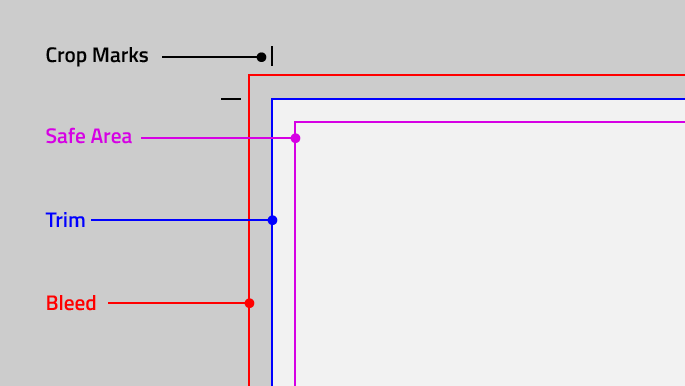
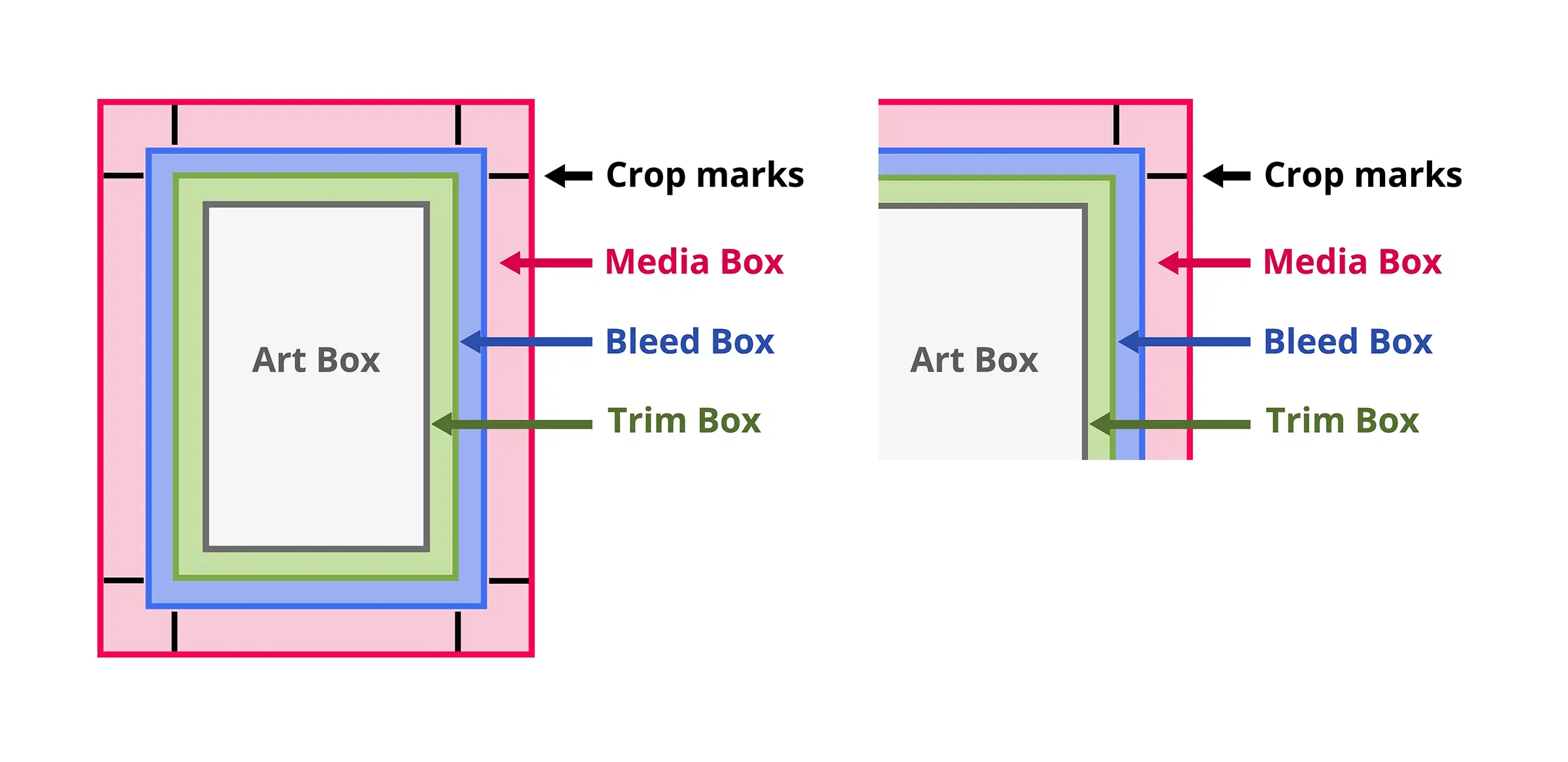
- Bleed is the area beyond the final cut line where artwork intentionally extends.
- It prevents white edges showing on the final piece if the cut is slightly off.
- Standard bleed size: 3mm (for most of the world) or 0.125 in (U.S. standard).
How to set it up:
- In InDesign, set bleed guides to 3 mm around your document.
- In Photoshop or Illustrator, extend your background and images to that guide.
- When exporting to PDF (especially PDF/X formats), ensure “Use Document Bleed Settings” is checked.
2. What Are Margins (Safe Zone)?
- Margins—sometimes called a safe zone—are the internal buffer between important content and the trim line.
- Keeping text and vital visuals inside margins ensures nothing is cut or lost.
- Recommended margin size: At least 5 mm (or about 0.25 in) inside the trim edge.
Tips:
- Align your guides at least 5 mm from the cut edge.
- Ensure titles, logos, and essential text stay within this area to avoid accidental trimming.
3. Why You Need Both
Combine bleed and margins to:
- Avoid white edges when trimming isn’t perfectly centered.
- Prevent cropping of important elements near the edges.
- Meet professional print standards, minimizing delays or extra costs.
4. Common Print Jobs & Recommended Specs
| Project Type | Bleed | Margin (Safe Zone) |
|---|---|---|
| Flyers / Brochures | 3 mm | 5 mm |
| Posters / Banners | 5 mm | 10 mm |
| Business Cards | 3 mm | 5 mm |
| Book Covers (Spreads) | 3 mm + spine | 10–15 mm |
Note: Larger formats (posters/banners) benefit from bigger margins.
5. Step-by-Step: Preparing Your File
- Set up canvas
- Add 3 mm bleed all around.
- Add guides defining a 5 mm margin inside that.
- Design phase
- Extend backgrounds and artwork into bleed.
- Keep text, logos, and key visuals inside margin guides.
- Export properly
- Use PDF/X-1a or PDF/X-4.
- Include bleed areas.
- Embed fonts and color profiles.
- Review proof carefully
- Double-check no critical content is in the bleed — everything should sit within the safe zone.
6. Real-Life Print Examples
- Flyer with full-bleed background: Extends to bleed area; logo/text is accommodated safely inside the margins—no chance of cropping.
- Book cover: Design spans across front/back with bleed; internal text elements stay well within margins to ensure safe printing.
7. Why Ewan Printing Prioritizes This
By enforcing bleed and margin standards, Ewan Printing helps you avoid:
- Unsightly white strips along cropped edges.
- Important content being trimmed or aligned unevenly.
- Production delays, reproofs, or unexpected costs.
8. Expert Workflow Recommendations
- Embed bleed and margin settings in your templates from day one.
- Keep content layered and organized in professional design software.
- Always export to PDF/X with bleed and margin configuration checked.
- Review before submitting, or ask our team for a preflight check to prevent issues.
📌 Final Takeaway
Bleed gives your design breathing room past the cut line—protecting against unwanted white space—while margins safeguard your vital content from being trimmed away. Both are essential for ensuring your printed materials come out looking polished and professional.
Need help setting up your file or want to order custom templates with built-in bleed and margins? Ewan Printing is here to make your print job smooth and stunning—get in touch today!
The most trusted and quality printing company, with excellent customer service. Best Quality Printing in Dubai
#EWANPRINTING
WhatsApp/Call us:
Arabic: 055 5771552
Arabic & English: 056 5071752 – (Send Query) https://wa.me/message/ZCPEMGR67ZD6G1
English | Urdu | Hindi: 050 508 6855
For latest offers
Email: printingewan@gmail.com
Location: Shop 26 and 28, Al Nasiriya Building, 247 Damascus Street, Al Qusais Industrial Area 1, Dubai, UAE
Leave a Reply